The five views
Five tabs show the same application in five ways. Switching views never re-parses files. The Viewer rebuilds the section structure from the regional specification, keeps the original submission shape and shows the disk directories. Each kind of information has its own view.
What each view shows
| View | Contents | Question it answers |
|---|---|---|
| TOC | All sequence documents under the section skeleton | What is the full structure, and which documents are effective now |
| Sequence | A tree ordered by submission sequence | What did one submission contain |
| Regulatory Activity | Groups of sequences merged by submission type and tracking number | How the original application relates to its supplements |
| Studies | Studies and documents grouped by STF category | Which documents belong to one study |
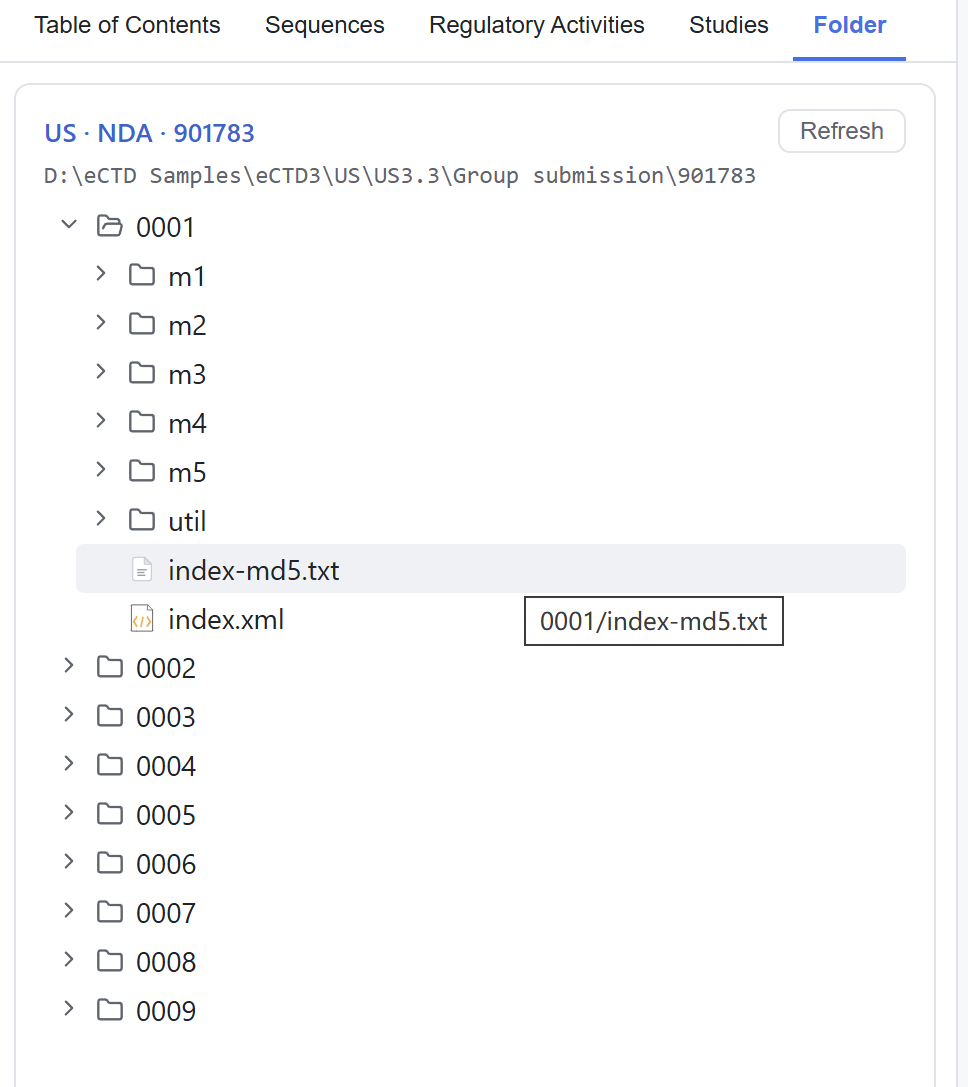
| Folder | The real directory hierarchy on disk | Where a file sits, and whether unindexed attachments exist |
Tab states
If the active view is hidden, the Viewer falls back to the first visible view. Hiding a view also disables its shortcut.
TOC
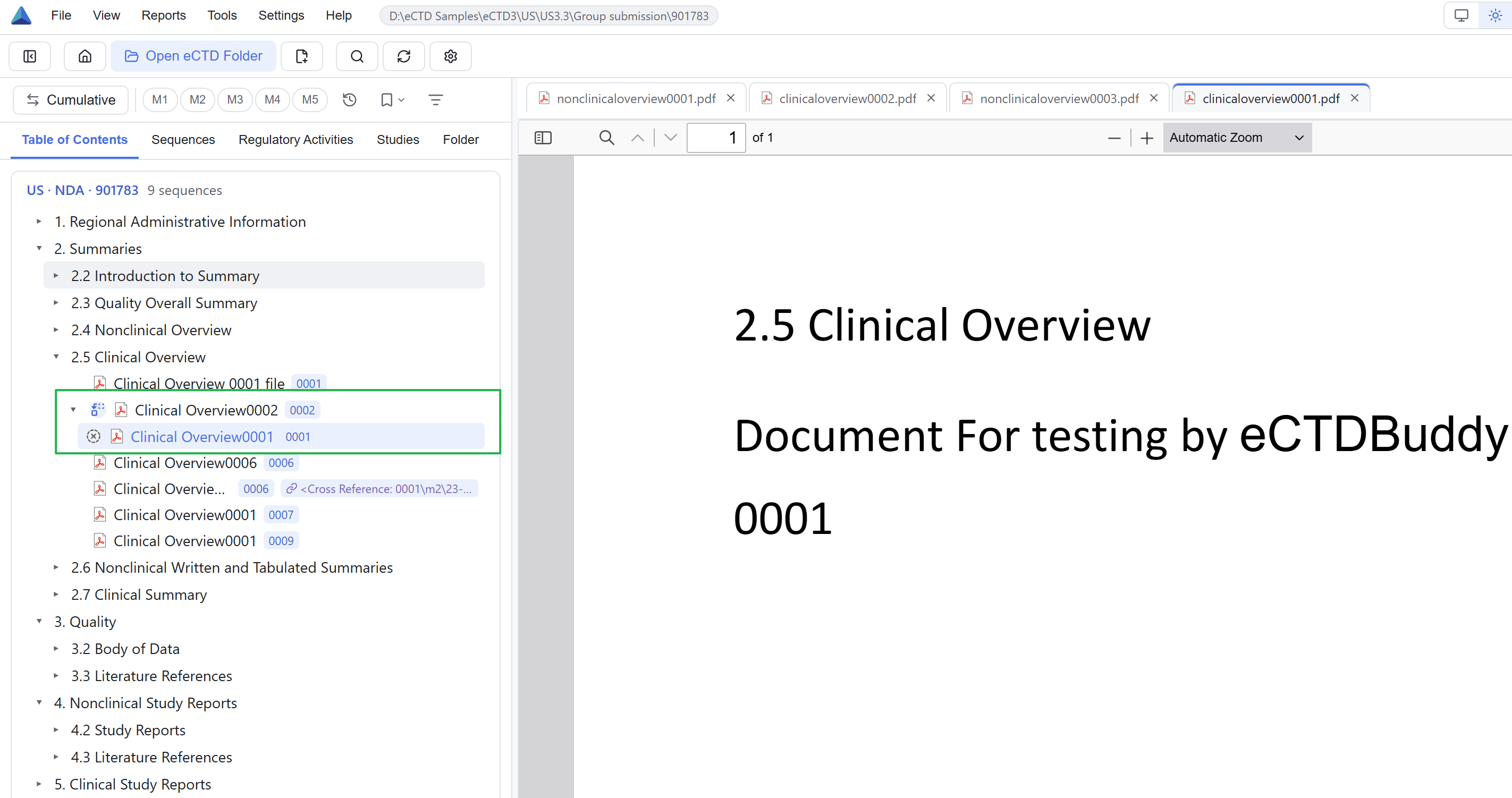
TOC is the main view for daily work. The tree follows the section skeleton defined by the regional specification, takes its structure from the newest sequence in the application, and collects documents from every sequence. Leading icons mark documents as new, replaced, deleted and so on.
Here the Viewer offers the Current / Cumulative switch, lifecycle review, merged or split repeating sections, an empty-section toggle, and right-click properties and checksum. Icons and display options are in 05 Lifecycle & tree display.
Sequence
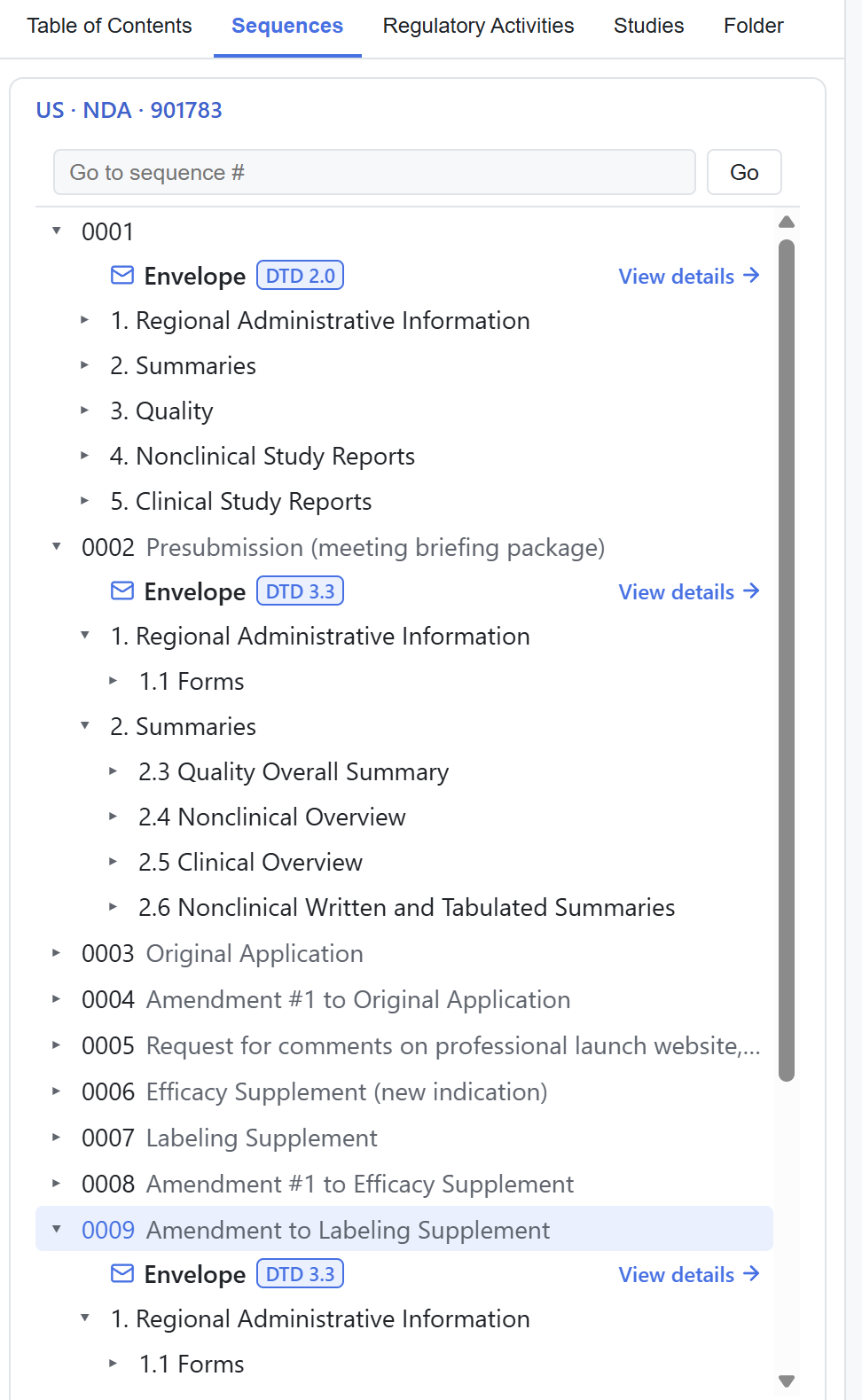
The Sequence view lists submissions one by one and matches the backbone files as they were submitted, so you can check exactly what one delivery contained. Each sequence has a default envelope child. Clicking it shows that sequence's regional metadata: submission type, date and applicant. Sequence number, submission date and description are visible on the row.
Not affected by Current mode
Sequence is always cumulative. The Current / Cumulative switch has no effect here, and Current mode is not available.
Regulatory Activity
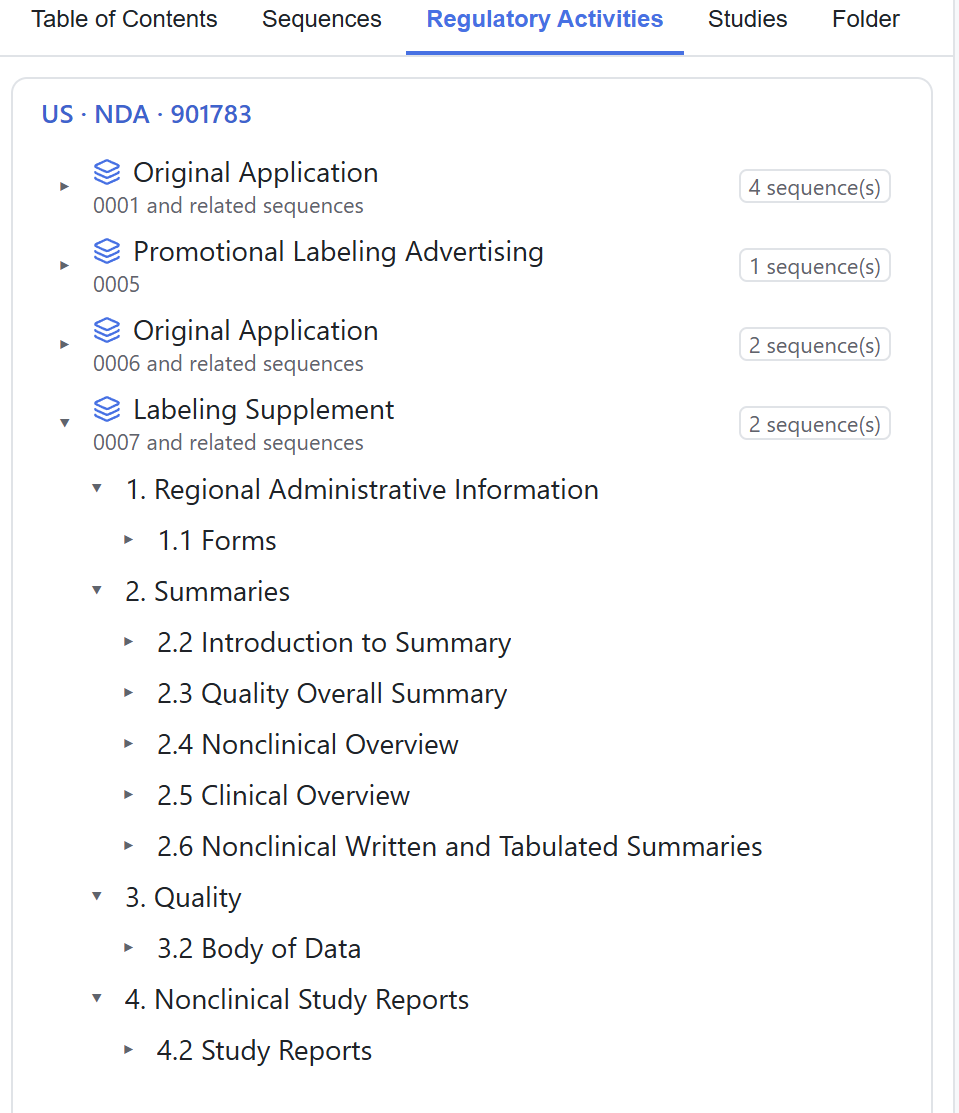
The Viewer groups sequences by submission type, then merges sequences sharing a tracking number, including suffixed variants, into one group. Headings and indentation separate regulatory activities. Right-click a group to expand or collapse it, or to generate a report for that group.
This view supports the Current / Cumulative switch. Report scope is described in 10 Reports & export.
Studies
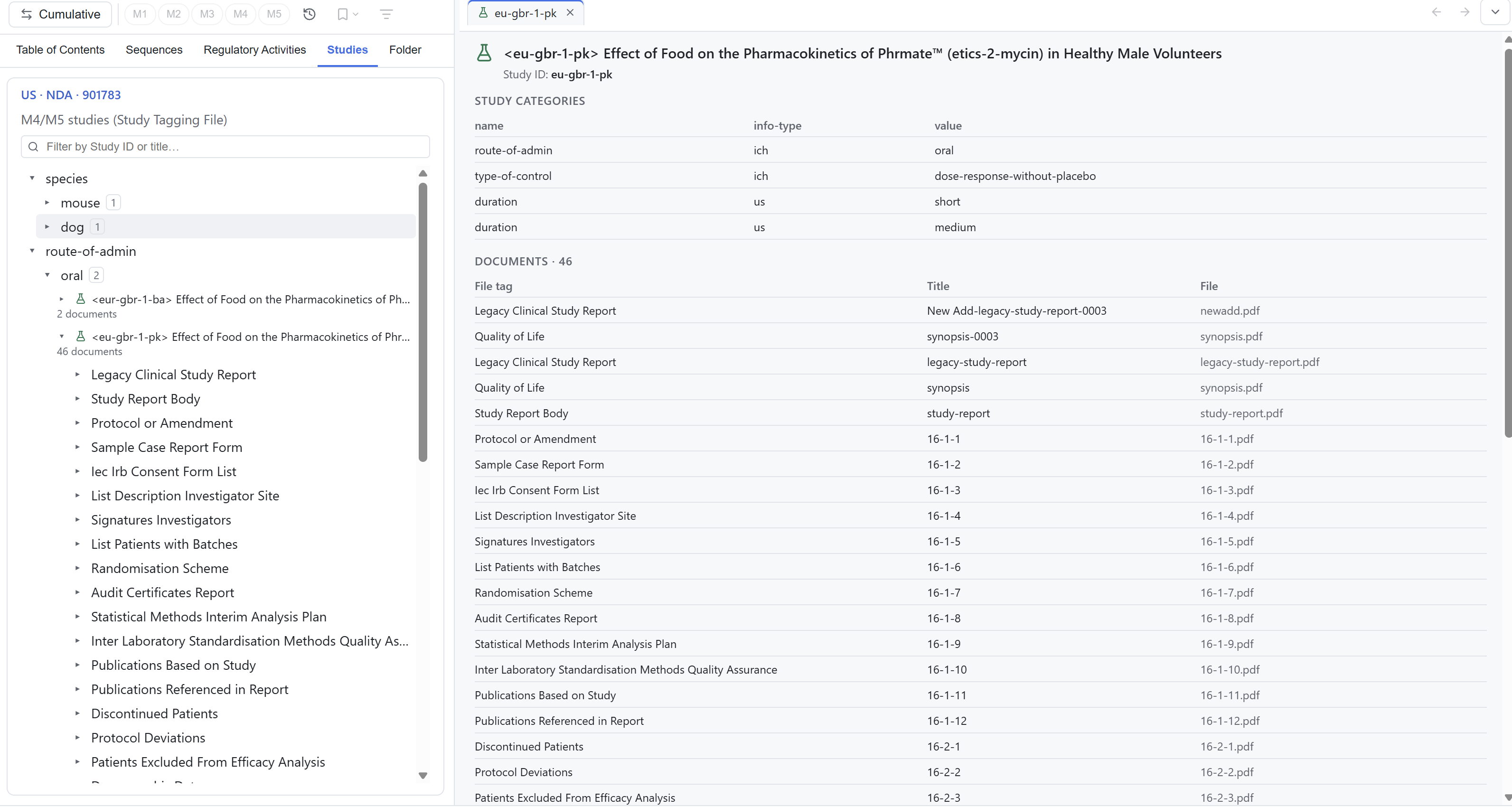
The Viewer collects eCTD v3 Study Tagging Files and v4 study data, then groups them by the STF category tree. One study can appear under several categories. Expanding a study row shows its document tree; clicking the row opens a study metadata panel.
The view has its own search box that filters study titles only. It is not part of the global index. See 07 Search.
Folder
The Folder view shows the real directory hierarchy on disk, with folders first, name-sorted rows and the same icons as the file manager. The absolute application root path appears above the tree, and the file currently in preview is highlighted.
It is a snapshot
The Viewer reads the directory once when you open the application and does not watch the file system. If files are added or changed on disk, click Refresh in the view header to enumerate again. That refreshes the directory only and does not re-parse.
Why a tab is missing
| Symptom | Cause | What to do |
|---|---|---|
| One or two tabs are gone | Hidden by hand under Settings → Content & views → View visibility | Re-enable it in settings. Hiding it also disables its shortcut |
| Regulatory Activity and Studies are gone | JP v3 regional Module 1 is a full snapshot, so cross-sequence merging has no meaning and the Viewer hides both views | This is a regional rule. JP v4 keeps both views |
| Some report menu items are unavailable | The Viewer shows reports by region and version | See 10 Reports & export |
Each view can be shown or hidden on its own, and the Viewer hides some automatically by region and version. Leading status icons and Current / Cumulative are covered in 05 Lifecycle & tree display; opening documents is covered in 06 Document preview.