Attach a draft sequence
The Viewer can attach a sequence that has not been formally submitted to the open application, so you can review it alongside the submitted sequences. The next sequence is usually being prepared in a staging area outside the application folder. Attaching it copies no files and changes nothing on disk, which makes it useful while the draft is still being written.
When to use it
- The next sequence is in preparation and you need to check how it relates to existing sequences and sections.
- You want to read draft documents in the same TOC without changing the application folder.
- You need to show what the application will look like after this supplement.
What this feature is for
Attachment is a temporary viewing aid. The Viewer does not write drafts into the application folder, and this feature does not replace the formal sequence preparation and submission process.
Entry points
Both entry points do the same thing.
| Entry point | Location | Detail |
|---|---|---|
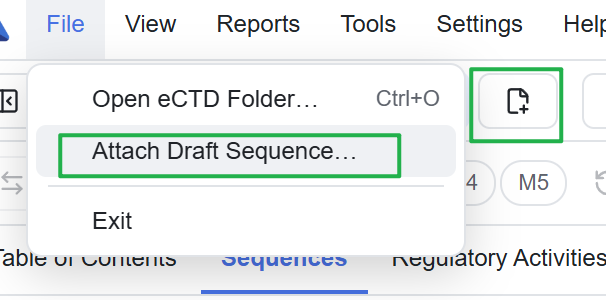
| File → Attach draft sequence… | File menu | The usual entry point |
| Attach icon | Toolbar, the file-plus button next to Open eCTD Folder | Tooltip reads "Attach a draft sequence folder to the current application" |
An application must be open first, because the draft has to belong to it. With no application open, the toolbar button is greyed out and the menu tells you to open one. Either entry point opens the "Select draft sequence folder" dialog, and picking a folder starts the attachment.
Checks during attachment
The selected item must be a folder whose root contains a backbone file: index.xml for eCTD v3 or submissionunit.xml for eCTD v4. The draft must also belong to the current application. All three eligibility rules must pass.
| Rule | Meaning |
|---|---|
| Same region | The region declared by the draft matches the current application |
| Sequence number unused | The current application does not already have the draft's sequence number |
| Same application number | The draft declares the current application's number |
If a check fails, the interface names the rule that failed.
| Message | Cause |
|---|---|
| Region differs | The declared region does not match the current application; the message shows both the declared and expected values |
| Sequence number exists | That number already belongs to this application, so the draft needs an unused one |
| Application differs | The declared application number is not the current application |
| Not an eCTD sequence folder | The selection is not a folder, or its root lacks the backbone XML |
| Already attached | This folder is already attached to the current application |
| Already in this application | The selection is one of the application's own sequences and is already in the workspace |
You can cancel during attachment. On success the Viewer merges the TOC again and the result appears shortly.
Which folder to pick
Pick the draft sequence's own root folder, the one containing index.xml or submissionunit.xml. It can sit anywhere, including outside the application folder. One attachment adds one draft sequence.
What changes after attachment
| Location | Effect |
|---|---|
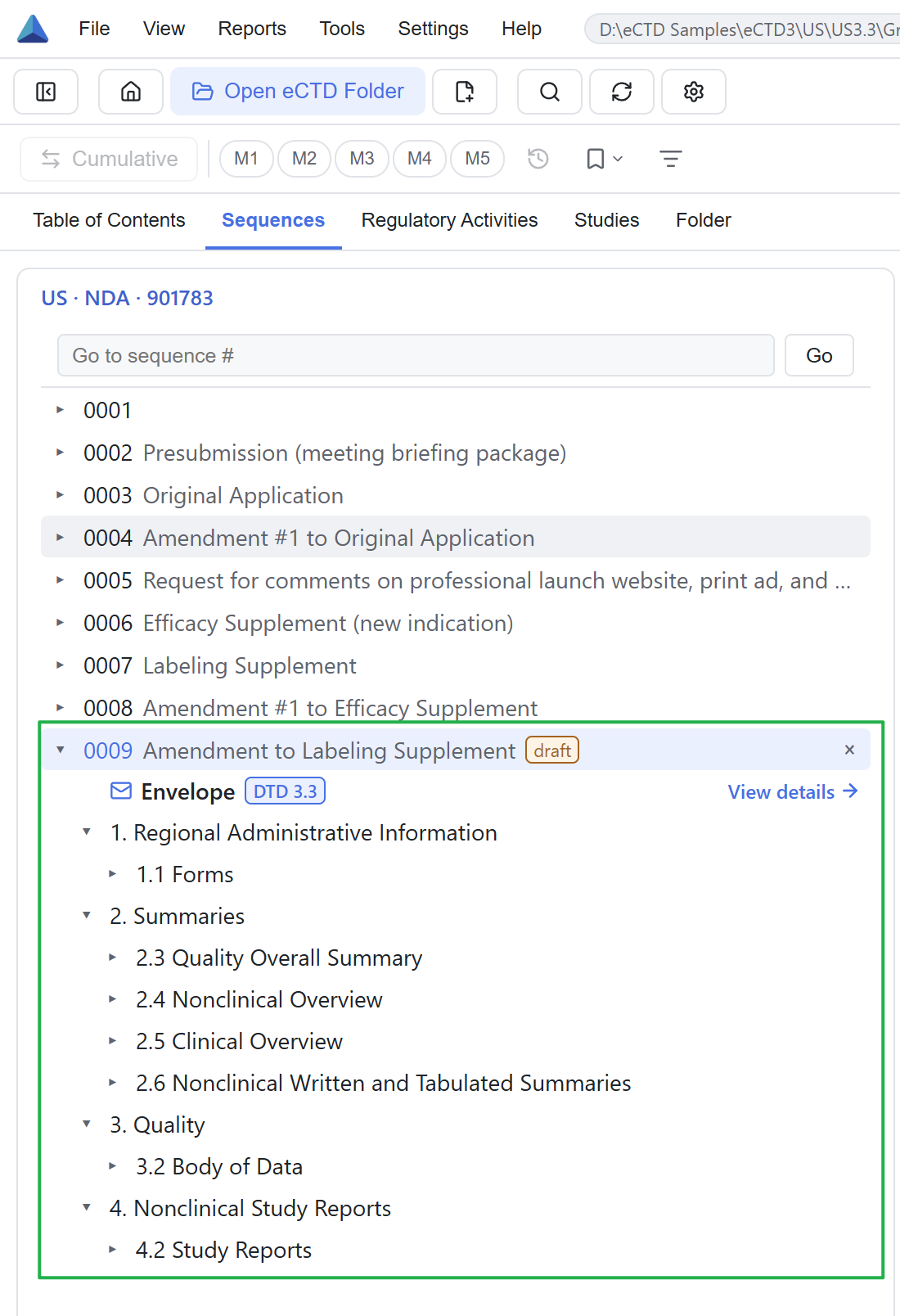
| Sequence view | The draft appears alongside submitted sequences with a "Draft" mark and a remove button at the row end |
| TOC | Draft documents join the TOC. The Viewer appends the draft at the end of the sequence list, so sorting by sequence number treats it as the newest submission |
| Section structure | Still taken from the newest submitted sequence. A draft that covers only some sections would place documents at the wrong level if used as the skeleton |
| Preview | Draft documents open like any other document |
Click the remove button at the end of the draft row. Removing affects that draft only and leaves files on disk unchanged. If you remove the sequence you are currently viewing, the view falls back to the first remaining sequence.
How long the attachment lasts
Current workspace only
The Viewer does not write the attachment into settings or save it with the application. An attached draft sequence is not written to the parse cache and is not included in reports. When you reopen the application, the interface shows only the sequences that actually exist in the application folder, and the draft does not come back. Reload current application (Ctrl/⌘+R) is the exception: it re-attaches the drafts it still holds, so a refresh does not lose them. Opening another application, or exiting and restarting, drops them. You can remove a draft at any time with the button at the row end.
To check what one submission contained in its original form, see 04 The five views. Section structure and version replacement are in 05 Lifecycle & tree display. Why a draft is gone after a restart is covered in 14 FAQ & scope.