Quick start
The first open of a large application takes longer because the Viewer parses everything before it can show the tree.
Before you start
- The Viewer is installed and running.
- You have a licence. Online: a License Key and Serial number. Isolated networks: a
.liccredential file and the email bound when the offline package was created. - An eCTD application folder on a local disk or an accessible network or mapped directory.
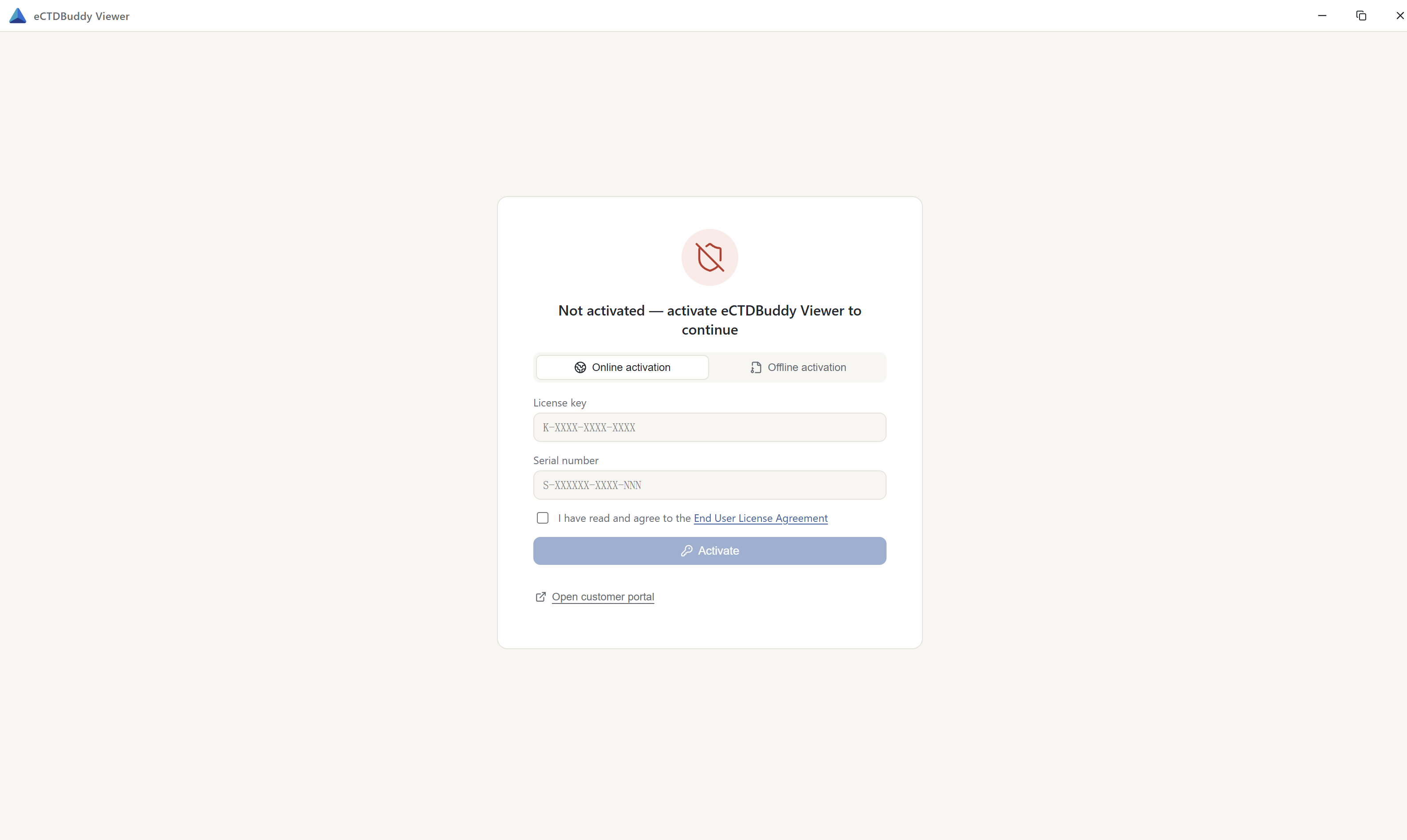
Activate the licence
The first launch walks you through activation. Two methods are available.
| Environment | Method |
|---|---|
| Online | Enter a License Key and Serial number |
| Isolated network | Import a .lic credential file and enter the bound email address |
The licence is bound to the device and the OS login user. Status, expiry and entitled regions are under Help → License Information. The scope is described in 13 Regions, versions & licensing.
Open an application
On the Welcome page choose Open eCTD Folder… (Ctrl/⌘+O) and select the application root, the folder that contains 0000, 0001 and the other sequence folders. To open only one submission, select that sequence folder. The Viewer opens the application it belongs to.
The Viewer detects the region and specification version, parses the backbone files and builds the views. You do not choose a region by hand. When it finishes, five view tabs appear with TOC selected. The left pane holds the section tree; the right pane shows a short in-app guide until you open a document.
Browse and preview
Switch tabs with Ctrl/⌘+1…5; hidden tabs are skipped. Clicking a document leaf opens a new preview tab. Tabs stay open so you can compare documents without finding them again. Use Alt+← and Alt+→ to move back and forward in the active tab's history.
The five views are described in 04 The five views, and the previewable formats in 06 Document preview.
Find content
Ctrl/⌘+F opens search over structure and metadata. Right-click a document to assign a bookmark, view properties or review its lifecycle. The Reports menu exports inventory and technical reports. See 07 Search, 08 Bookmarks and 10 Reports & export.
Welcome page
The left side lists recently opened applications, sorted by open time with a region flag on each row. The Viewer marks records with missing paths in place, and you can remove them.
The right side holds Repositories. Give the Viewer a set of local folders and it scans them into a list of applications you can open one by one, so you do not pick a folder again for each application. You can enable scanning on add and on startup. Scan results are not added to Recent; the Viewer records only applications you actually open.
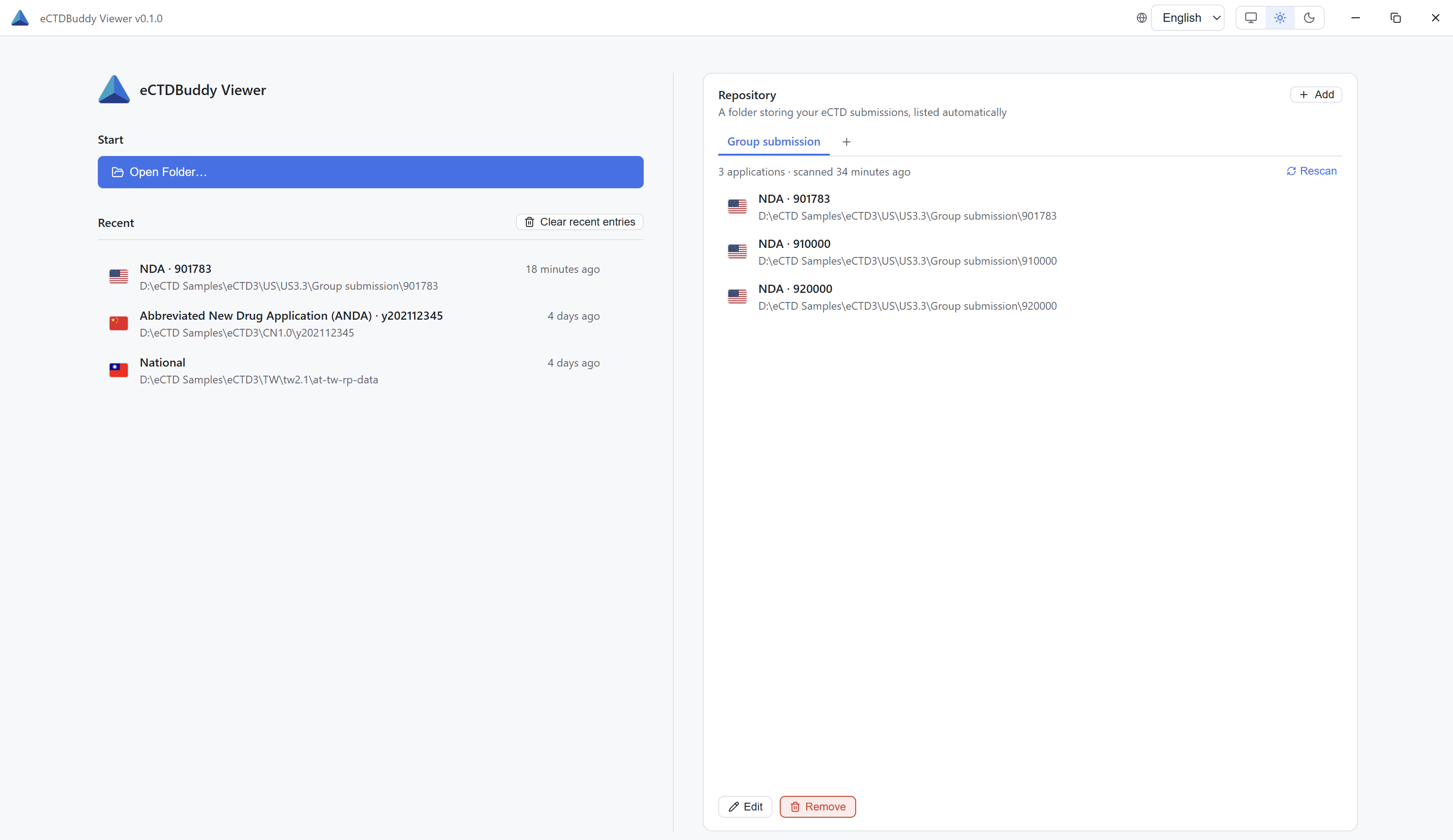
A directory containing index.xml counts as one application, and the Viewer does not look further inside it, so nested sequences are not listed separately. If an application is missing from the list, check whether the folder you added to the Repository is too deep or too shallow. Removing a Repository removes its definition and related records, not the files on disk.
Cache
The first open performs a full parse and writes a local cache. On later opens the Viewer compares backbone file hashes and reuses cached models for unchanged sequences; it parses only changed sequences again. To force a rebuild, use Settings → System → Clear parse cache. Clearing the cache affects parsed results only. It does not delete bookmarks, settings or Recent entries. See 11 Tools & settings.