Interface & shortcuts
The window has a menu bar, view tabs, a navigation pane and a preview pane. Menu commands and shortcuts are grouped below by where you use them.
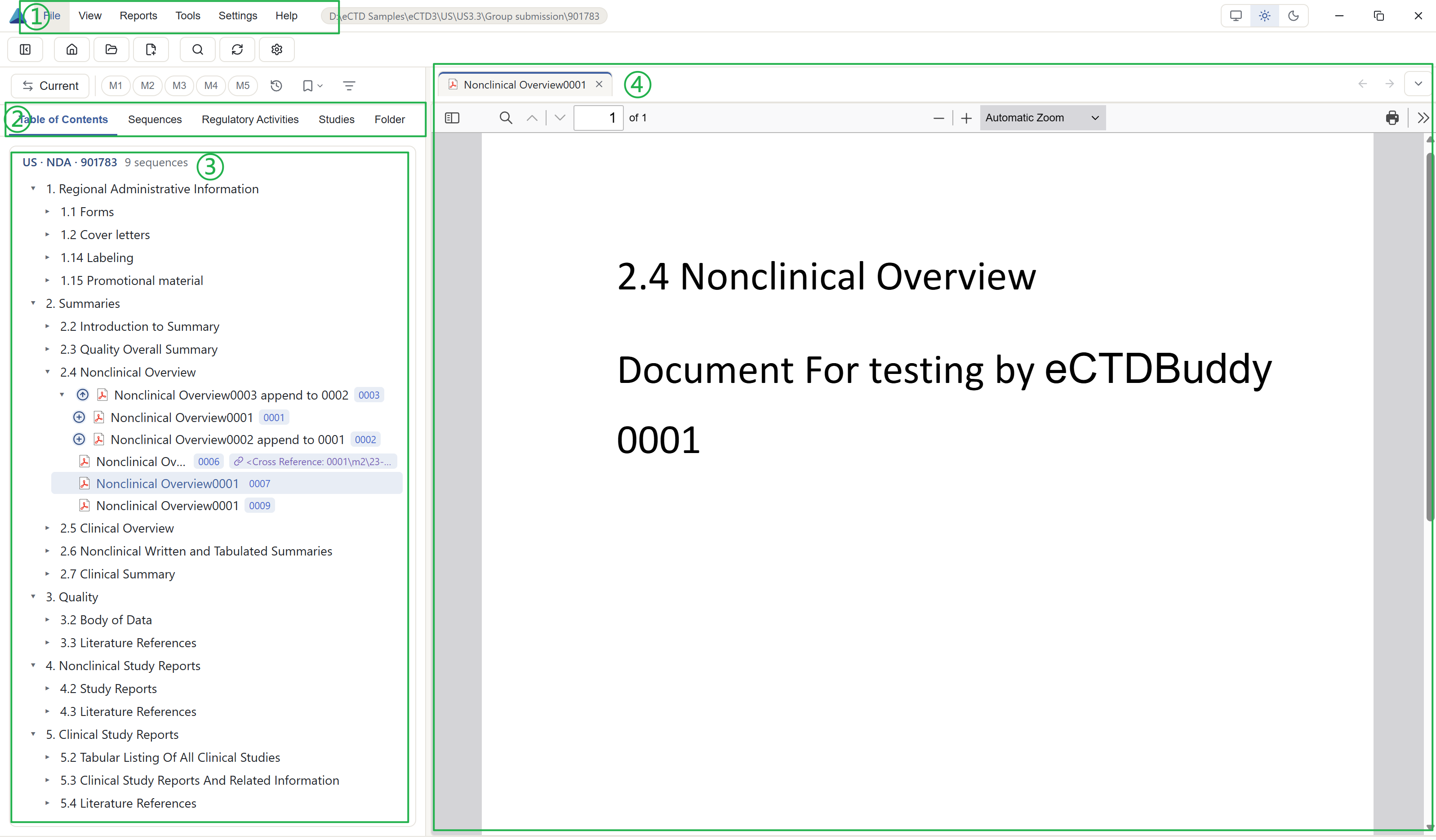
Window areas
| Area | Contents |
|---|---|
| Menu bar | Open an application, switch display mode, choose a report, find tools, change settings, check licence status |
| View tabs | Switch how the same application is presented; search and bookmark buttons open their panels on the right |
| Navigation pane | Expand sections, right-click documents, toggle the bookmarks sidebar |
| Preview pane | Read documents. Tabs stay open, and switching away from a PDF tab does not reload it, so your reading position survives |
The six menus
| Menu | Main commands | Use it to |
|---|---|---|
| File | Open eCTD folder, attach draft sequence, exit | Start work, temporarily attach an unnumbered draft |
| View | Current / Cumulative, bookmarks panel, sidebar visibility | Show only effective documents, find tagged documents |
| Reports | Seven structured reports, shown by region and version | Export lists for colleagues |
| Tools | Search, reload current application, export backbone | Find content, refresh after disk changes, back up backbone XML |
| Settings | Open the settings dialog on a chosen group | Change language, theme, tree display, PDF behaviour |
| Help | Usage guide, logs folder, licence information, about | Check licence status, get diagnostic logs, reopen the in-app guide |
Keyboard shortcuts
| Shortcut | Action |
|---|---|
Ctrl/⌘+O | Open an eCTD folder |
Ctrl/⌘+1…5 | Switch between the five views; hidden tabs are skipped |
Ctrl/⌘+F / Ctrl/⌘+P | Open the search panel |
Ctrl/⌘+U | Toggle Current / Cumulative |
Ctrl/⌘+R | Reload the current application |
Ctrl/⌘+, | Open settings |
Alt+← / Alt+→ | Back and forward in preview tab history |
Esc | Close the search overlay |
Menu states
On macOS, ⌘ replaces Ctrl. When a menu item is unavailable, the interface states the reason in place, for example "Open an application first" or "Available in TOC, Regulatory Activity and Studies". The preview pane shows a short in-app guide until a document is open. You can reopen it from Help or hide it.
The five tabs are described in 04 The five views. Right-click commands on tree nodes are listed in 06 Document preview.