Document preview
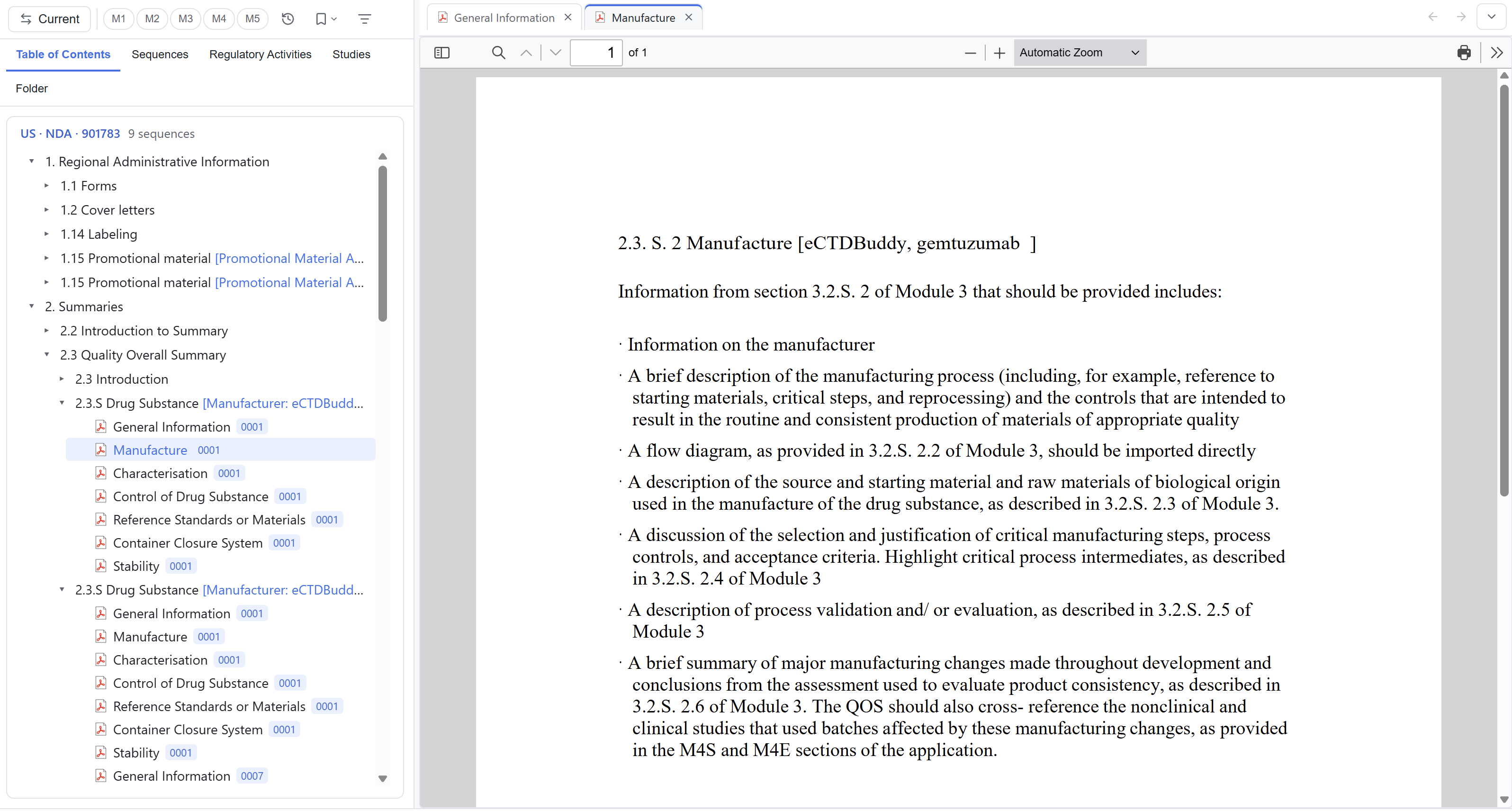
The Viewer has read-only renderers for several file types. Clicking a document leaf opens a new preview tab. Clicking more documents keeps all those tabs open. Use Alt+← and Alt+→ to move through the active tab's history. Switching away from a PDF tab does not reload it, so your reading position survives.
Until you open a document, the preview pane shows a short in-app guide. You can reopen it from Help or hide it.
Supported file types
| Type | Common extensions | Preview |
|---|---|---|
.pdf | Built-in reader with outline and bookmark jumps, zoom, paging, spread view, link behaviour and a PDF link list | |
| Images | .png .jpg .jpeg .gif .bmp .svg .webp .ico | Built-in image viewer |
| TIFF | .tif .tiff | Decoded and displayed in-app |
| XML family | .xml .xsd .xsl .xslt .dtd | Rendered through its XSL stylesheet when available; falls back to indented, highlighted source |
| Word | .docx | Built-in read-only rendering |
| Tabular / data | .xlsx .xls .csv .txt .log .md .json | Grid or plain-text viewer |
| Web pages | .html .htm | Sandboxed read-only preview with scripts disabled |
| Audio / video | .mp4 .webm .mov .m4v .mp3 .wav .m4a | Built-in player, subject to available system codecs |
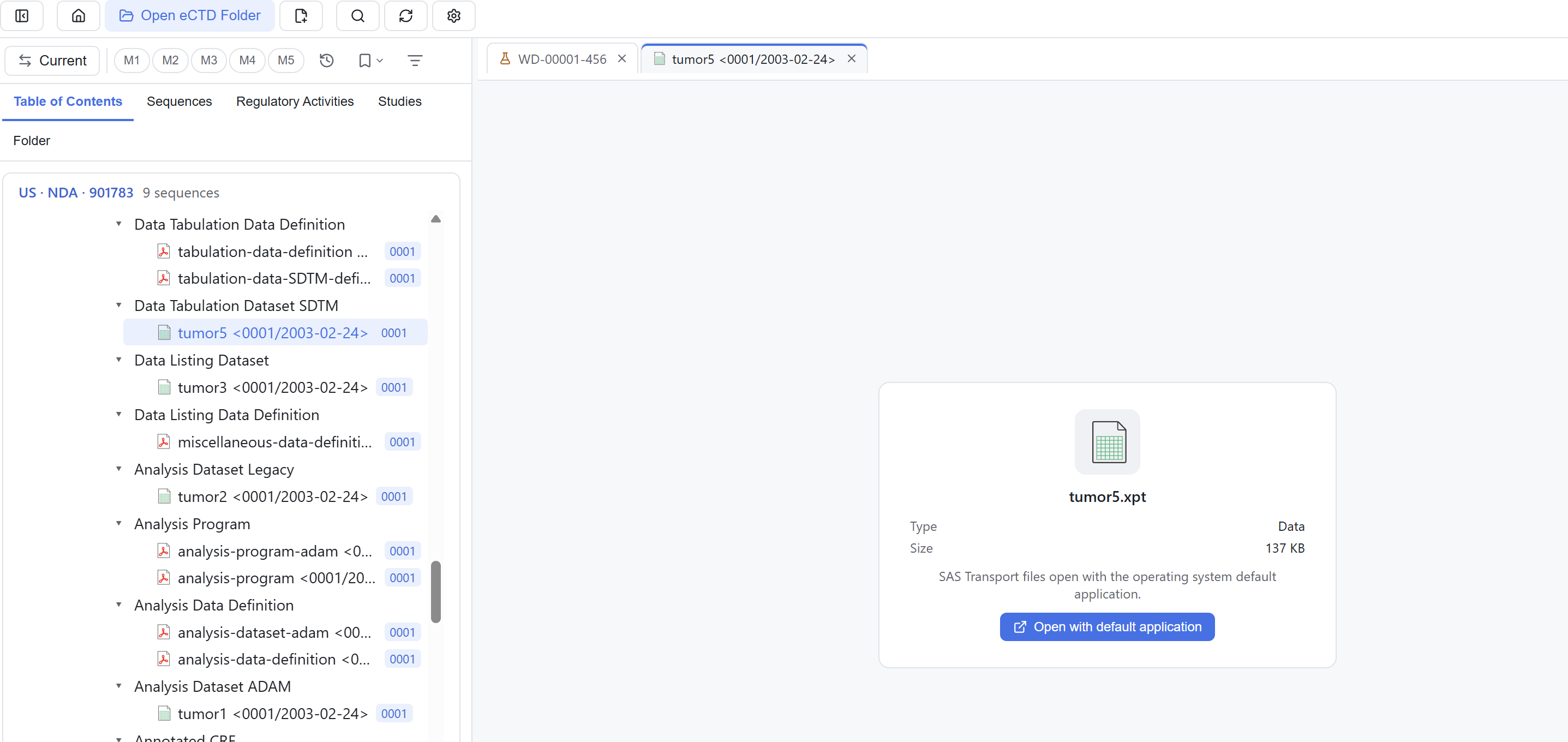
| No built-in renderer | .doc .dot .rtf .xpt .xlsm and unknown types | File information panel with an option to open using the OS default application |
All previews are read-only. Default zoom, spread view and how in-PDF links open are set under Settings → PDF. See 11 Tools & settings.
When a file will not open
First check whether its extension appears in the table above. A file information panel means the Viewer has no built-in renderer for that type. Right-click to open it with the OS default application, or to reveal it in the file manager.
Accepted file formats
File classification follows the regional "accepted file formats" specifications; the first data set is EU eCTD v4.0. Real submissions may contain extensions the specification does not list, and the Viewer tries to display them. Being displayable does not mean the region accepts the format. Check the applicable specification and official validation results for compliance.
Right-click commands
| Task | Command |
|---|---|
| Read a document | Open, open in a new window, open with the OS default application |
| Find the file on disk | Reveal in file manager |
| Check links inside a PDF | View PDF links |
| Mark or inspect | Assign bookmark, view properties |
| Tidy the tree | Expand all, collapse all |
| Search below a node | Search here, see 09 Filters |
Search entry points are in 07 Search, bookmarks in 08 Bookmarks, and document list exports in 10 Reports & export.