Tools & settings
The Viewer puts re-reading, single-item checks and tree housekeeping in the menus and right-click commands. Settings come in seven groups, apply immediately with no save step, and survive a restart. The settings dialog has its own search box, the Settings menu opens a chosen group directly, and the bottom of the dialog restores defaults.
Everyday actions
| Task | Where |
|---|---|
| Re-read the current application | Tools → Reload current application |
| Check one document | Right-click for a single-item checksum, properties, review lifecycle, view PDF links |
| Tidy a long tree | Right-click a section or search result for expand all, collapse all, search here |
| Refresh disk directories | Refresh in the Folder view header; enumerates again without re-parsing |
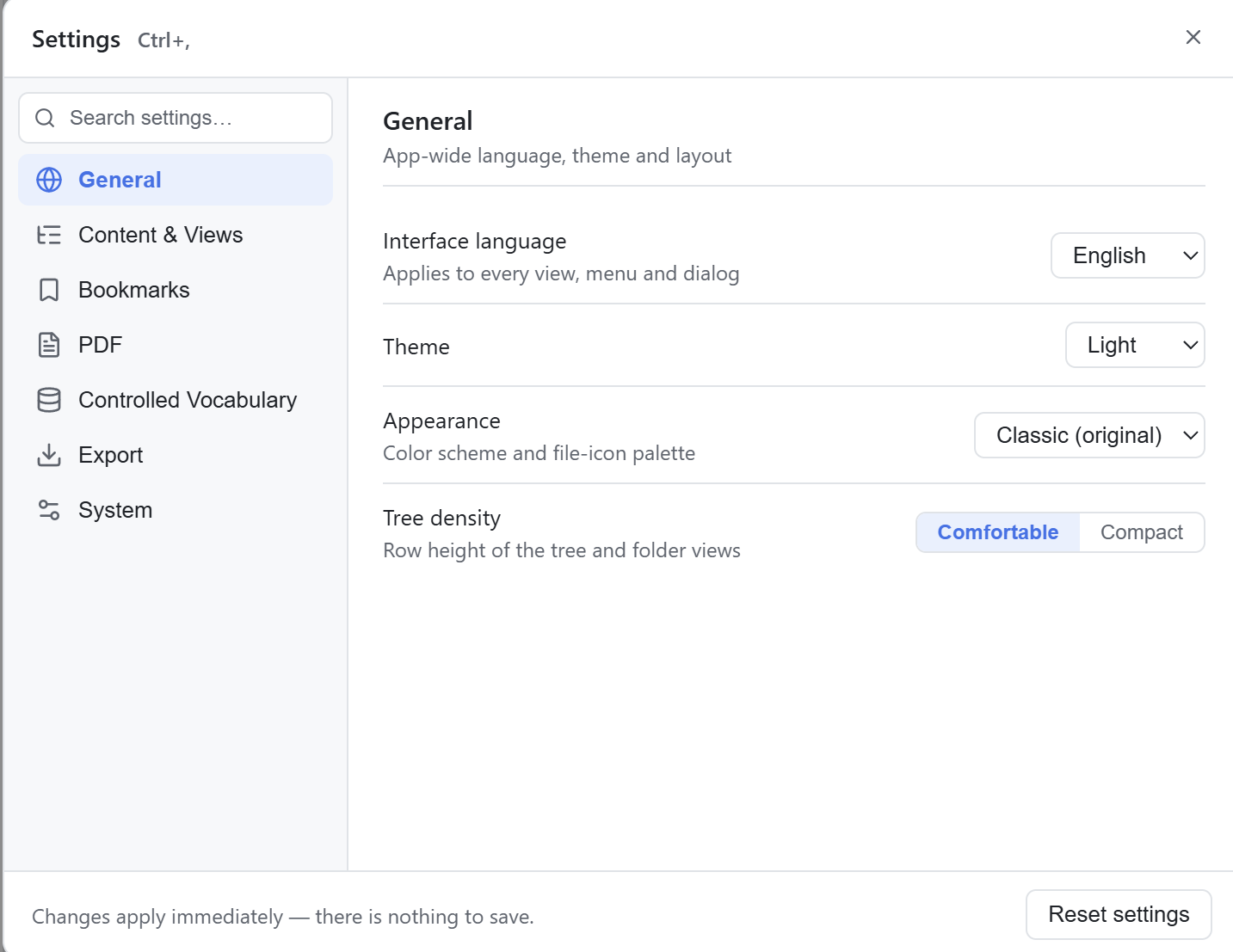
General: language, theme and layout
| Setting | What it does | When to change it |
|---|---|---|
| Interface language | Switch Chinese and English across all views, menus and dialogs | Change language at runtime, no restart needed |
| Theme | Light, dark or follow the system | Switch to dark for night reading or a bright screen |
| Appearance | A full colour scheme and file icon palette: Classic (original), Ink Blue Document, Warm Reading | When you want a different palette |
| Tree density | Row height in the TOC and Folder views, comfortable or compact | Pick compact to fit more rows on one screen |
Content & views: tree, titles and document badges
| Setting | What it does | When to change it |
|---|---|---|
| Section title language | Show regional section titles in the local language or English, independent of the interface language | Keep the interface in Chinese but check titles against the English specification |
| Merge repeating sections | Merge repeated sections and append attribute values to document titles; when off, values go on section titles instead. Switching recomputes the TOC | Turn it off to compare section instances one by one, see 05 Lifecycle & tree display |
| Repeating-section attribute colour | Colour of the attribute value appended after document titles in TOC | When the attribute value is hard to tell from the document title |
| Show empty sections | Show TOC sections that contain no files | Find structural gaps where the specification defines a section that was not submitted |
| Show sequence number after leaf | Show the owning sequence number as a badge after each document title | See at a glance which submission a document came from |
| Show cross-reference after leaf | For documents referenced from another sequence, show the referenced file path | Check documents reused across sequences |
| Show lifecycle status icons | Show a leading icon on documents with a lifecycle state; click it for the full history | Check which versions a document went through |
| View visibility | Show or hide each of the five views, keeping at least one | Simplify the interface when you use only two or three views, see 04 The five views |
Bookmarks: coloured tags on document leaves
| Setting | What it does | When to change it |
|---|---|---|
| Add bookmark | Create a tag with a name, colour and description | The three predefined tags are not enough, see 08 Bookmarks |
| Name / colour | Change how an existing tag looks | A predefined name does not match its actual use |
| Delete | Delete a tag and clear it from every marked document; a second confirmation is required | The tag is no longer used; check its assignments first |
PDF: reader defaults
| Setting | What it does | When to change it |
|---|---|---|
| Default zoom | Initial zoom for newly opened PDFs: automatic, fit page or fit width | You adjust the zoom every time you open a PDF |
| Spread view | Two pages side by side, odd pages on the right, as in print | Reading a document laid out as a spread |
| Open in-PDF links | Where a cross-document link opens: current tab, new tab, new window or the OS default PDF reader | You do not want a link to replace the document you are reading |
Controlled vocabularies: import official eCTD CV packages
| Setting | What it does | When to change it |
|---|---|---|
| Import CV package | Import official Genericode CV files. Identical records are skipped, new-version records are appended and take over | The v4 terms in the app differ from the version you use |
| Import file / import folder | Pick one file or a whole folder for a batch import | You received a full official vocabulary package |
| Last import | Show the result: N added, N duplicates skipped, N errors | Confirm the import was complete and no file failed |
| Imported code lists | List imported code lists with row counts; with no records the built-in data is used | Check whether a code list is in effect |
Imports can be repeated
The Viewer deduplicates by content hash, so importing the same file twice creates no duplicate records, and changes take effect without a restart. CV data drives eCTD v4 term titles, document type titles and message checks. Submission XML pinned to an older OID version still resolves correctly.
Export: what happens after a report is saved
| Setting | What it does | When to change it |
|---|---|---|
| After exporting a report | Ask each time, always open, or never open | Skip the confirmation when you export often, see 10 Reports & export |
System: logs, cache and maintenance
| Setting | What it does | When to change it |
|---|---|---|
| Open logs folder | Get the local diagnostic session logs | Troubleshoot a problem and send logs to support |
| Clear cache | Clear the structured sequence cache; it is safe to delete and rebuilds on demand | Force a fresh parse, see 14 FAQ & scope |
| Restore defaults | Reset every setting; a second click confirms | You changed too much and want to start over |
Clearing the cache does not lose data
Clearing the parse cache affects cached parse results only. It does not delete bookmarks, settings or Recent entries.
To attach an unsubmitted sequence temporarily, see 12 Attach a draft sequence. Licence status and where data is stored are in 13 Regions, versions & licensing.